What’s inside the Shipment Box?
Iceriver is known for its prompt shipments. Once you place your order, you can expect your shipment to arrive within a few business days. However, it may take a few weeks, depending on your location.
- You will receive your Iceriver KS5M in an Iceriver box.
- The machine is fully packed in an antistatic bag with two thick foam pieces at the top and bottom for safe shipment.
Find a Suitable Spot
- Since the Iceriver KS5M is heavy, remove it carefully from the package. Place it in a well-ventilated area where you can exhaust the heat generated during the crypto-mining process.
- Moreover, the ASIC can generate a loud noise. Hence, ensure you place the miner in a suitable area where you don’t mind the noise.
- Finally, since most ASICs, including Iceriver KS5M, don’t support wifi, make sure you have a dedicated wired internet connection in your mining area.
Things you will need to start mining with your Iceriver KS5M
- You will need a dedicated electric circuit for ASIC mining.
- Next, you will need a dedicated 240V 30A Power Distribution Unit (PDU).

- You will need dedicated cables, C19 to C20 cables, to connect your ASIC. These cables don’t come with the ASIC.
How to Setup Iceriver KS5M?
Here are step-by-step instructions for setting up your Iceriver KS5M.
Preparing the ASIC
- Connect one end of the C19 to the C20 power cord to the PDU and the other end to the ASIC.
- Now, plug in the ethernet cable to ASIC.
- Once you plug in the power cable and ethernet cable, switch on the ASIC.
- You can see the lights blinking as you turn on the ASIC.
Configuring the ASIC
- You will need to log in to the Icervier KS5M to configure it.
- Now, you will need to find your Iceriver KS5M’s IP address. Thus, you can log in to the web GUI and set up the ASIC for crypto mining.
- You will need a laptop or computer that uses the same Internet network as your ASIC. You can find the IP address in two ways.
~ You can use the free program software Advanced IP Scanner to get your miner’s IP address.
~ You can log in to your router and get the IP address.
Accessing the Iceriver KS5M via the Web Browser
- You can copy the IP address and paste it into the web browser. You will be redirected to a login page requesting your username and password.
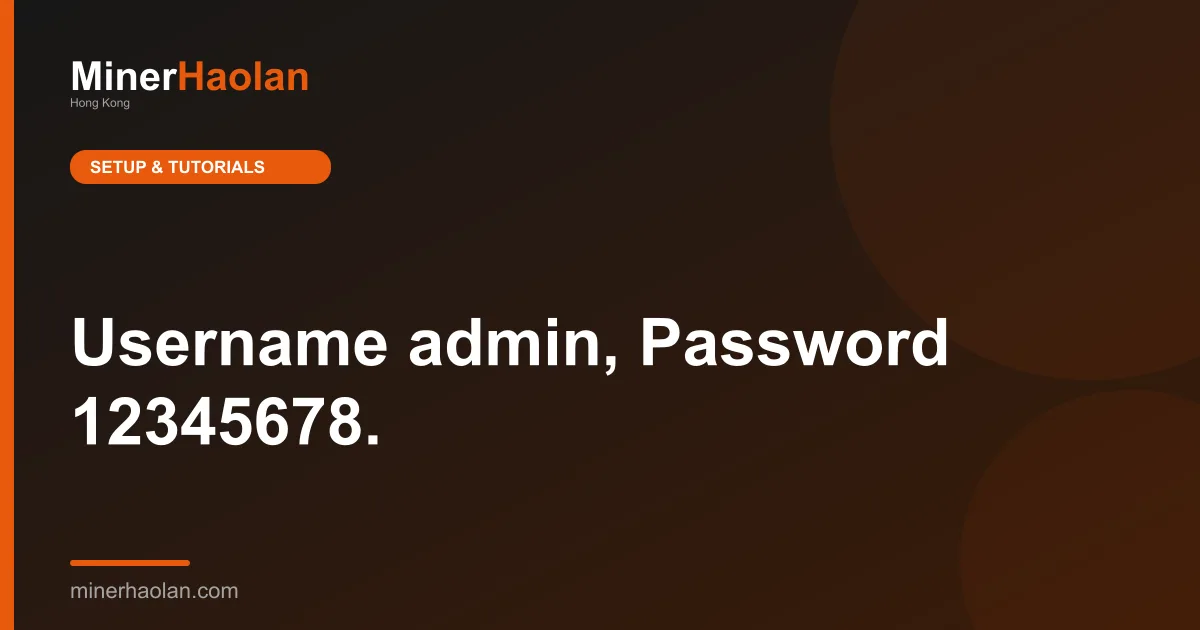
- The username will be “admin,” and the password is “ 12345678.”
Get a Kaspa Wallet
- You will need a dedicated crypto wallet to store your Kaspa coins. You can pick up your Kaspa wallet from Kaspa’s official website, here.
Adding the Mining Pool
- You can check Mining Pool Stats to choose the mining pool to mine Kaspa. You can research and select the pool that best suits your mining preferences. Let’s take kaspa-pool.org for illustration purposes.
- You can enter the necessary details, like your wallet address and location.
- Go to the miner settings page in the web GUI. Copy the mining pool address and paste it under the pool address tab. In case any of the mining pools go down, you can also add the backup pools in pool 2 and pool 3.
- Next, you need to add the wallet address. You can copy your Kaspa wallet address and paste it into the wallet address field in the web GUI. At the end of the wallet address, you add a small name separated by a period. It can be anything like .ks5M. Copy and paste the same wallet address on all three tabs.
- After entering all the details, hit save.
Start Mining Kaspa
- Once you finish all the settings, it will redirect you to the ASIC’s dashboard. The mining should have started, and you can check the mining status, such as hash rate, power consumption, and mining rewards, in real-time.
![Top Alephium Miners of 2026 [Updated List]](/blog/top-alephium-miners.webp)