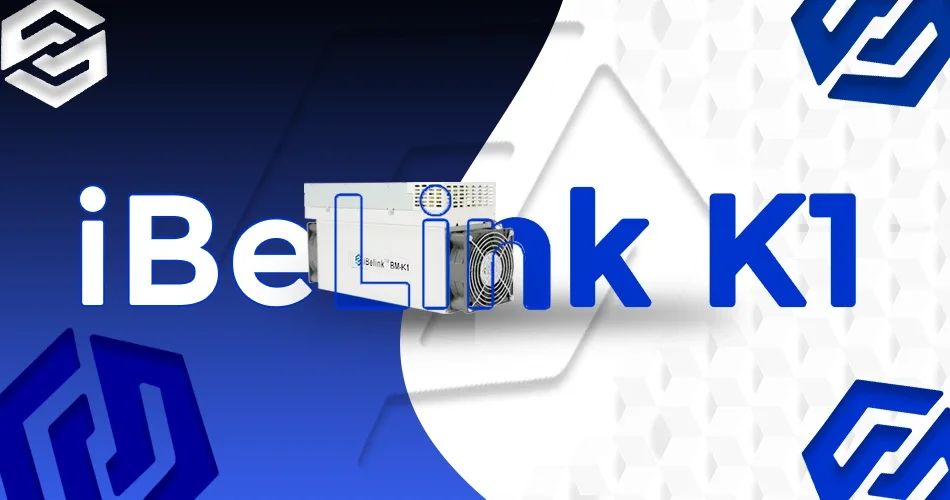
iBeLink K1 Specifications:
- Hashrate: 5.3THash ± 5%,
- Power: 800W± 5%(power on the wall below 25°C )
- Operating temperature: 0°C ~40°C
- Networking connection: Ethernet
- Working power: 190V~240V, 50Hz/60Hz
- Dimensions: 399 mm(L) * 131 mm(W) * 157 mm(H)
- Weight: 5.8 kg
- Supply the digital currency produced by algorithm POW Blake2s.
- Applies with the main protocol Stratum Protocol
- Provides with a management platform via web interface which simplifies system setup and large-scale deployment
- Applies with restarting mining software or system using the web interface
- Provides self-checking function of power-on system and real-time monitoring of chip status
- Provides LED display for hashrate blades which provides convenience for large-scale mining machine management
- Provides settings and automatic switching of the main mining pool and multiple backup mining pools.
- Able to monitor error with independent hashrate blades and also can use RESTART button to recover system automatically.
- The hardware Watch Dog guarantees that the system can automatically recover from network or system errors.
- Connect: After connecting the network cable and power line, power on the device
- Power on: When power on the device, the front panel lights up with 2 LED lights, one red and one green.
- Working mode
iBeLink K1 Guidelines
After about 1 minute, the red light goes out and the green light continues flashing, which means the machine starts working normally.
Step 1: Searching Mining Machine
Find Mining Devices with Searing Tool in Figure 1.

Figure 1
The tool can be got from: iBeLink Support

Figure 2
Step 2: Login
Open a web browser and enter the miner address to login, the password is ibelink. Click the [Login] button to login to the mining machine. The login page is shown in Figure 3.

Figure 3
You can modify the username and password by clicking [Password] button. The password management interface is shown as below in Figure 4.

Figure 4 – Management Interface
Enter in the old password, the new password and confirm password should be same. Then click [Change Userpass] to update the password. To modify the default username, please enter the new username in New User Name, otherwise leave it blank.
Step 3: Mining Machine Status
After logging in to the miner system, the management homepage of the mining machine will be shown as in Figure 5.
Figure 5 – iBeLink K1 Mining Machine Homepage
Basic information of the mining machine will be showing respectively in these four areas on the screen:
- current time, time zone, machine name, IP address, MAC address.
- number of mining chips and blades, temperature, number of nonce per minute, hashrate per five seconds,
number of nonce returned by chips, times of acceptance/rejection/error. - continuous running period of single blade, PLL frequency and serial port rate.
- Number of single-blade chips, current chip bitmap, number of nonce received by the chip in the past 30 minutes and its chip bitmap, times of acceptance/rejection/error, current depth of difficulty, average nonce per minute, other parameters.
- Statistics of the mining pool.
Step 4: Mining Configuration

Figure 6
iBeLink K1 mining configuration:
- Click [reboot] to restart the system.
- Click [restart] to restart the mining software.
- Configuration.
Click the [Config] button on the left side of Figure 6 to enter in the configuration interface, which is mainly divided into 3 parts, as shown in Figure 7.
Part One:- Click the [√] button to display the details of the selected mining pool.
- Click the [Top] button to set this mining pool to the highest priority.
- Click the [Stop] button to cut off the connection with this mining pool.
- Click the [Delete] button to delete this mining pool.
Type in the mining pool address in Pool URL, name of the miner in Pool User, and the password in Pool Password, and then click the [Add Pool] button to add the new mining pool to the mining software.

Figure 7 – Configuration
4. Set Temperature ReminderFill out your mail address, alarm temperature interval and temperature limit, and click the [Set Warning Param] button to complete the mail reminder setting. The alarm temperature is used for automatic frequency adjustment. The mining frequency will be reduced automatically to protect the chips when the current blade temperature is over the warning temperature. The maximum alarm temperature cannot be over 70°C.
5. Set Fixed IPThe miner is preset to use DHCP. If you want to use a fixed IP, you need to manage the setting as follows:
Fill out the fixed IP, subnet mask, network entry, enable IP Enable, and then click the [Set IP Config] button. If you want to return to DHCP mode in the future, you only need to remove IP Enable and click the [Set IP Config] button. Note that some routers require corresponding settings to use fixed IP addresses for mining. in that case you need to have a full understanding of the router you are using to correctly use the fixed IP address for mining. The IP mode settings need to restart the machine to take effect.
After setting all the parameters, click [SaveConfiguration] to save all the parameters. If not saved, these parameters will become invalid after restarting the miner.
7. ASIC Chip Parameter SettingsThe maximum working frequency PLL preset by the miner is 700Mhz. You can modify the upper limit of the frequency by entering a valid PLL value, and then click the [Set PLL] button to complete the setting. Unless there with professional advice, we do not recommend you change the preset PLL frequency. The new highest PLL frequency will take effect after restarting the system.
Part Three:The updateMiner/rollbackMiner/restoreMiner function is used to upgrade and restore the version of the Miner program.
The current mining software version is shown in the third part of Figure 7, similar to cgminer 5.3.3.
- Click the [UpdateMiner] button to update (to the latest) mining software.
- Click the [RollbackMiner] button to roll back the mining software to the previous version.
- Click the [RestoreMiner] button to restore the mining software to the factory version.
Version Update Information
- Date :- 14/10/2020
- Introduction :- Initial release version
- Version :- 0.1
Packing List
| Item | Component | Number | Introduction |
| 1 | Machine Box | 1 | Size(cm) |
| 2 | Power Cabal | 1 | Power supply |
| 3 | Technique & Manual | 1 | Within this document |